
How to use Gradescope A Student Guide
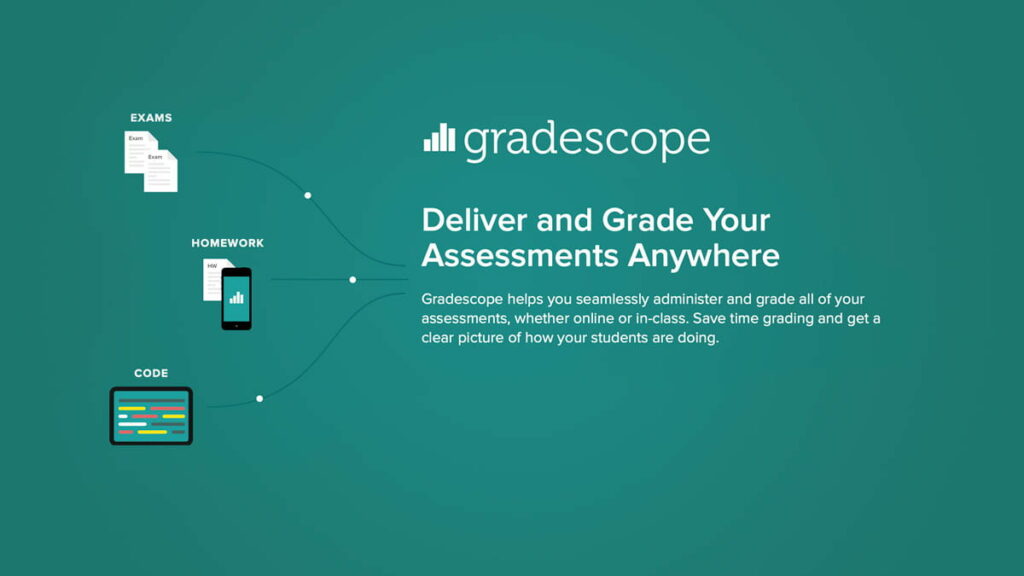
Gradescope is a feedback and evaluation tool that significantly minimizes the difficulty and amount of time associated with grading exams, homework, and other tasks. Gradescope is commonly used for remote assessment delivery. It enables teachers and graders to provide more accurate and fast feedback, resulting in enhanced learning outcomes.
Also Read:- How to Pass CCIE Exam- Best way to clear CCIE Security exam
Dynamic rubrics facilitate the simplification of laborious aspects of grading while enhancing grading consistency. AI-assisted Grading enables instructors to automatically group comparable responses and grade each group’s responses simultaneously. Gradescope also assists with grading programming assignments on a large scale and can grade printed bubble sheets automatically.
Gradescope is an instrument meant to streamline and standardise paper-based, digital, and code-based assignments. In addition to worksheets, quizzes, exams, and papers, it enables problem sets and projects. Using Gradescope, students can upload pen-and-paper problem sets for grading by an instructor or teaching assistant using an intuitive web interface that also permits on-the-fly rubric construction and immediate feedback. Instructors can generate more uniform grading across students and sections using Gradescope. Additionally, students receive more uniform feedback.
Why use Gradescope?
Gradescope assists educators with grading problem sets and other assignments more efficiently and reliably, while providing for extensive feedback. It facilitates the standardization of grading among sections and graders, especially in big classrooms. If a grading rubric is modified, Gradescope will update previously graded assignments retrospectively. Detailed analytics indicate where students may be having difficulty with a particular idea. It is fully integrated with Canvas and the Canvas gradebook, allowing for straightforward export of grades to Canvas.
Considerations for Gradescope usage
There is a slight learning curve associated with assignment creation and grading. Although it can be used independently of Canvas, the most streamlined experience for both students and graders is to use it within Canvas. It is most useful for large classrooms with multiple sections. View resources for learning how to use Gradescope.
In this article:
- Getting Started with Gradescope for Instructors/TAs
- Gradescope Integrated with Canvas (recommended)
- Gradescope without Canvas Integration
- Scanning Papers for Gradescope
- Gradescope FAQs for Instructors
- Getting Started with Gradescope for Students
- Getting Help with Gradescope
Getting Started with Gradescope for Instructors/TAs
Gradescope Integrated with Canvas (recommended)
Using LTI 1.3 standards, the University of Minnesota has connected Gradescope with Canvas. This connection permits instructors to synchronize their Canvas roster with Gradescope and post their Gradescope grades back to Canvas. It also provides students and TAs with a streamlined assignment submission and approval process.
- Connect to Canvas.
- Go to Courses in the sidebar on the left and select your course.
- Integrate your Canvas and Gradescope classes.
- Compile your roster
- Create an assignment in Gradescope and attach it to Canvas
- Grade submissions
- Post grades from Gradescope to Canvas
This LTI is currently restricted to the College of Science and Engineering. It will be made available to other colleges in Spring 2022. Even if you are not enrolled in CSE, you may use Gradescope. Please follow the directions listed below “Gradescope without Canvas Integration”
Gradescope without Canvas Integration
1. Create an instructor account on Gradescope at gradescope.com.
- use your University of Minnesota email.
- Visit the Gradescope Registration Form.
- Select the Instructor link.
- Enter your first name, last name, and University of Minnesota email address.
- In the school pop-up menu, select the University of Minnesota.
- There is no requirement to enter an invite code.
- Click the Register as a teacher button.
- If the signup was successful, a confirmation page should appear.
- Check your University of Minnesota email account for a new Welcome to Gradescope! email from gradescope.com with more instructions on how to set up your Gradescope account, password, etc. It may take a few minutes for the email to arrive
2. Create your course
3. Establish an assignment
4. Grade submissions
5. Return students’ work
Scanning Papers for Gradescope
Gradescope and PDF Scanning Services are available through the Office of Measurement Services (OMS). This consists of:
Paper examinations and homework assignments are scanned to PDF for instructors using Gradescope.
PDF scanning services include of aligning documents, removing staples or booklet bindings, and ensuring that pages are scanned and oriented appropriately.
Please email [email protected] for any further information or inquiries.
FAQs for Gradescope Instructors
Is there a feature in Gradescope that will let me set different deadlines for submission based on a course section?
- There is presently no option to create separate due dates for students taking the same exam in Gradescope.
- If they are all taking the same exam, you can utilize the “Assign to” tool in Assignments to distribute the exam to different sections at different times using Canvas. Use the Gradescope timestamp to confirm that the exam was submitted on time.
- Otherwise, you will need to develop separate examinations for each Canvas component.
Is there a method to revert to a previous submission and use it in Gradescope?
Yes! However, this correction can only be made by a Gradescope instructor. To accomplish this, the instructor can retrieve the previous submission from the student’s Submission History, select Download Original to download it, and then upload it to the assignment using the Upload Submission button on the Manage Submissions page for the assignment. This will make the older submission the default for grading and make it the current submission.
How do students access Gradescope instructor comments after grades have been posted on Canvas?
To view comments, students must return to the exam in Gradescope. Students can access Gradescope in one of two ways: a) via the assignment in Canvas if an external tool was used, or b) using the Gradescope link in the left navigation of Canvas. Note that if the test is locked in Canvas, students must use the Gradescope link located in the course’s left navigation. If instructors intend to lock the exam (i.e., use the “Available until” date), they must make this URL accessible.
Is there a way to either conceal the assignment outline point values from students or modify them after they have submitted?
When designing the assignment outline in Gradescope, you must assign point values to each problem, and students can view this distribution when submitting. While you cannot conceal point values from students, you may alter them after they have submitted tasks. Therefore, if you prefer that students not initially see point values, you can put “0” for each problem and adjust the point values once students have submitted their assignments.
About Gradescope
Gradescope is a collection of tools designed to support a standard grading procedure. Students and teachers scan and upload their assignments and exams. Instructors and GSIs develop a dynamic rubric that expedites the grading of large courses. The software provides a means for students to seek re-grading of problems and can reveal vital statistics about student work.
Service at a Glance
|
System Availability |
24/7* |
|
Initial Support Response Time |
No longer than 1 business day. |
|
Services and Offerings |
|
|
Eligibility |
Gradescope is available to all UC Berkeley instructors |
|
Rates |
Ongoing operations support is free of charge. |
|
Service Level |
Standard – You have open access to use the service or system. We have personnel available to help if you have questions or need minor tweaks made. |
|
Service Owner |
Rebecca Long |
How much time should I allow for submitting my assignment to Gradescope?
Allow an additional 10 minutes the first few times you submit an assignment to Gradescope. Remember that you must submit a PDF file of your assignment (i.e., a scanned copy).
How do I check my grade on an assignment?
The quickest approach to view your grade on an assignment is to consult the gradebook for that course in Canvas. (This is because Gradescope is integrated into the Canvas course site for a large number of CMU courses, and Gradescope grades are simply exported to Canvas.) For details on how to receive detailed score information and feedback on your work, see the next section.
How do I review my feedback on an assignment graded with Gradescope?
Once your assignment has been graded and you have logged into Gradescope via Canvas, you will be able to view all grading rubrics, with any rubric items that were applied to your contribution highlighted. Click on a question’s name inside the assignment to view the corresponding rubric criteria and instructor comments. Viewing the rubric is an excellent method for receiving feedback on your work.
How do I submit a regrade request?
Note that your instructor may have specific criteria regarding when you can request a re-grade and what information you must provide in your request.